If you’ve recently switched to Kobo, chances are you’ve already run into the same problem I did: the default library view is one giant pile of book covers with no real way to browse it. Learning how to organize a Kobo library properly made a huge difference for me, and my go-to tool for it is a free app called Calibre. In this post, I’m walking through exactly how I use Calibre to sort my Kobo library by series (plus an alternate method using tags and collections), straight from the tutorial on my YouTube channel.
As an Amazon Associate, I earn from qualifying purchases. This post contains affiliate links, which means I may earn a small commission at no extra cost to you if you make a purchase through one of these links.
Watch the full video below, then follow along with the written breakdown underneath.


Quick Kobo Overview
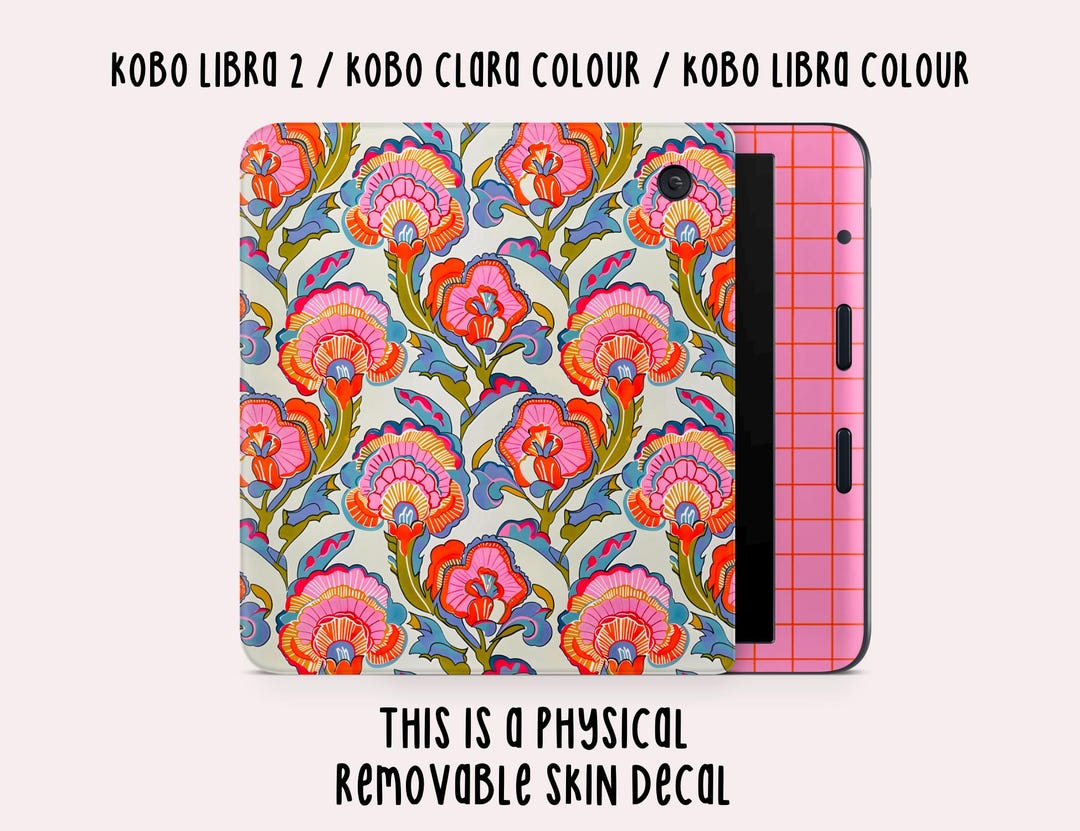
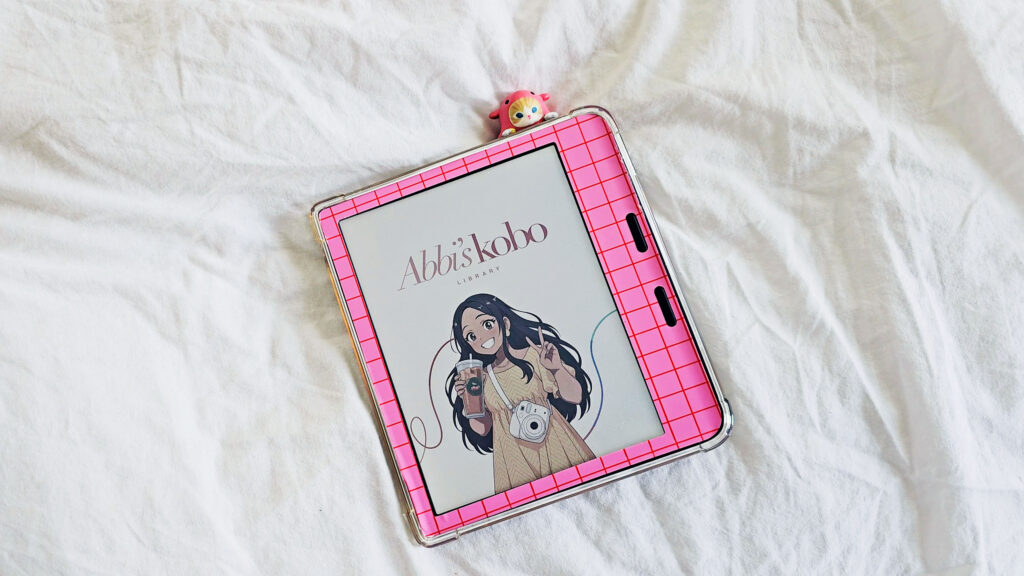
Before getting into organization, here’s a quick look at my setup. My Kobo Libra Colour is wearing a pink “granny chic” skin decal from my Etsy shop, and my home screen sleep screen is a custom Pinterest find I resized in Photoshop to say “Abbigayle’s Kobo Library” in a pink and green theme. Little personal touches like this make the whole thing feel more like mine before I even get into the library itself.
Why Kobo’s Default Book View Isn’t Great
By default, Kobo gives you two ways to browse your library: cover view or list view. Cover view looks cute, but with a large library it just becomes a huge, unsorted pile of covers with no titles. List view solves the missing-titles problem, but it’s not exactly aesthetic. You can also sort by author, which is useful but still doesn’t give you an easy way to browse by what you’re actually in the mood to read. None of Kobo’s built-in options solve both problems (aesthetic and easy to browse) at the same time, which is why I organize everything through Calibre instead.
How I Organize My Kobo Library by Series in Calibre
My favorite method is organizing every single book into a series, even ones that aren’t part of an official series. Here’s how it works:
- For books that are officially part of a series, I enter the real series title and book number in Calibre.
- For standalone books, I still create a “series” using the book’s own title. That way, every book in my library shows up in the same series-sorted list, whether it’s part of a 10-book series or a one-off read.
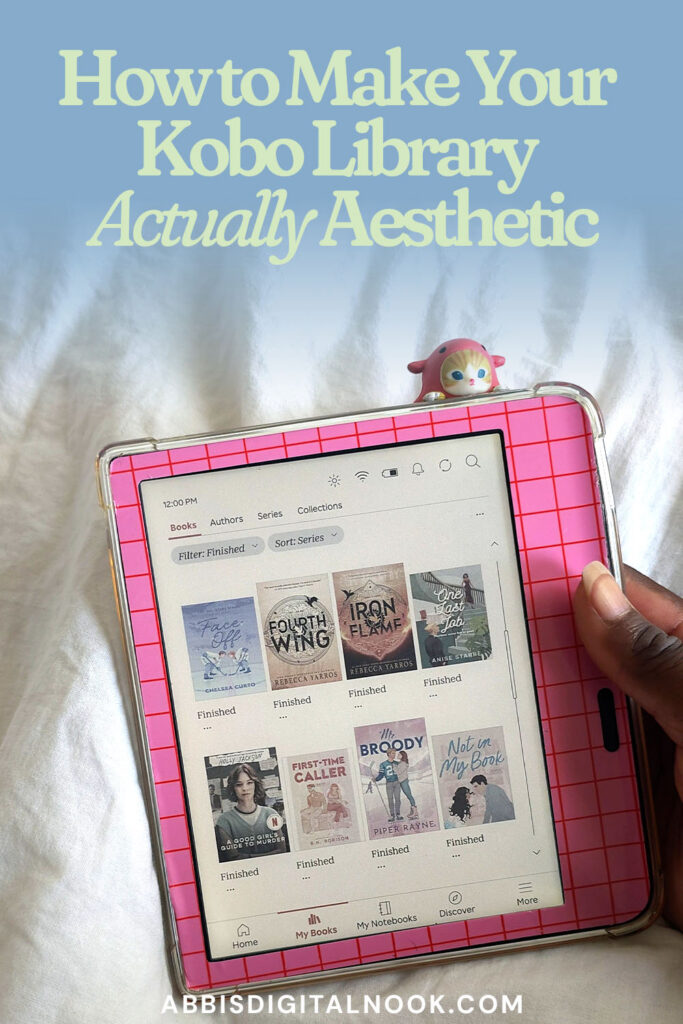
- Once every book has a series entered, I sync my Kobo, and everything displays neatly grouped and numbered in series view.
This method has a few benefits I really love. I can track how many books I’ve read from a series at a glance, see whether I’ve finished a series or not, and keep books that are part of a series in the correct reading order as new books get added. I also use color coding in Calibre so that books I’m planning to read next automatically show up in pink, and books I’ve already finished switch to green, which makes it easy to see my “up next” list the moment I plug in my Kobo.
One important note: this only works if every book has a series entered. Books without one won’t show up properly in series view, so it does take some upfront time going through your library and adding a series title (even if it’s just the book’s own title) to anything that doesn’t already have one.
Alternate Method: Tags and Collections
If series organization isn’t for you, Calibre also lets you create collections using its tags feature. Every tag I create in Calibre automatically becomes a collection on my Kobo, and a book can belong to multiple collections at once, similar to how collections work on Kindle. For example, I have a “sports” collection and a more specific “hockey” collection, and a book can live in both at the same time.
The only downside is that collections don’t display with cover art the way series do on Kobo, just a plain list. I’d love the option to set a custom cover for each collection, but for now, series view is still the more visually organized option between the two.
A Few Things to Keep in Mind
If you’re moving books over from Kindle like I did, keep these in mind:
- Cover sizing can get inconsistent. Books transferred directly from Kindle are often sized for Kindle, not Kobo, so covers can look mismatched next to each other. Fixing this means going into Calibre and adjusting each cover so everything displays at a consistent size, it’s a bit of a project, but doable over time.
- You can swap out covers you don’t love. Calibre also makes it easy to replace a book’s cover entirely, handy if you’d rather have something more aesthetic than the original artwork.
- Library loans stick around. Books borrowed through Libby or OverDrive stay in your Kobo library (with their cover) even after the loan has been returned, so you can still see what you’ve borrowed in the past.
Final Thoughts
Organizing my Kobo library through Calibre took some time upfront, but it’s made my entire library so much easier and more enjoyable to browse. Whether you go with the series method or lean on tags and collections, a little bit of organizing goes a long way toward making your e-reader feel less cluttered and more like your own personal, aesthetic library.
If you’re looking for more of my favorite Kobo, Kindle, and cozy bookish tech finds, check out my favorite Kindle & Kobo accessories (https://amzn.to/3Ohb3U5?tag=abbigayletama-20) or my full Amazon storefront (https://www.amazon.com/shop/abbicreates).
If this helped you get your Kobo library organized, give the video a thumbs up and subscribe to Abbi’s Digital Nook on YouTube for more Kindle, Kobo, and bookish tech content. See you in the next one!
Pin for later