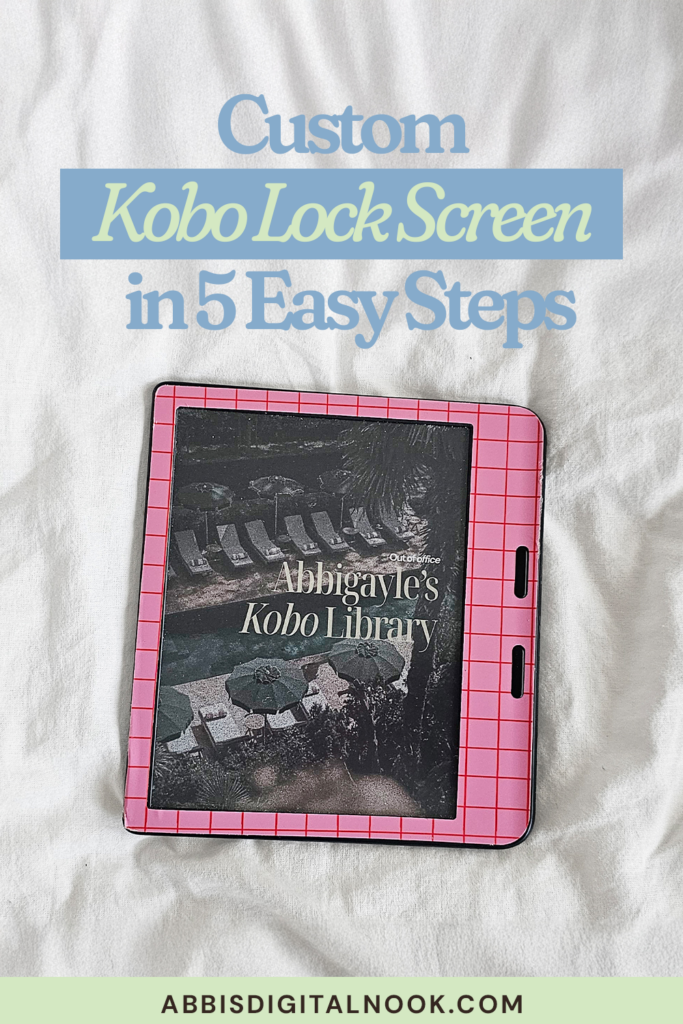
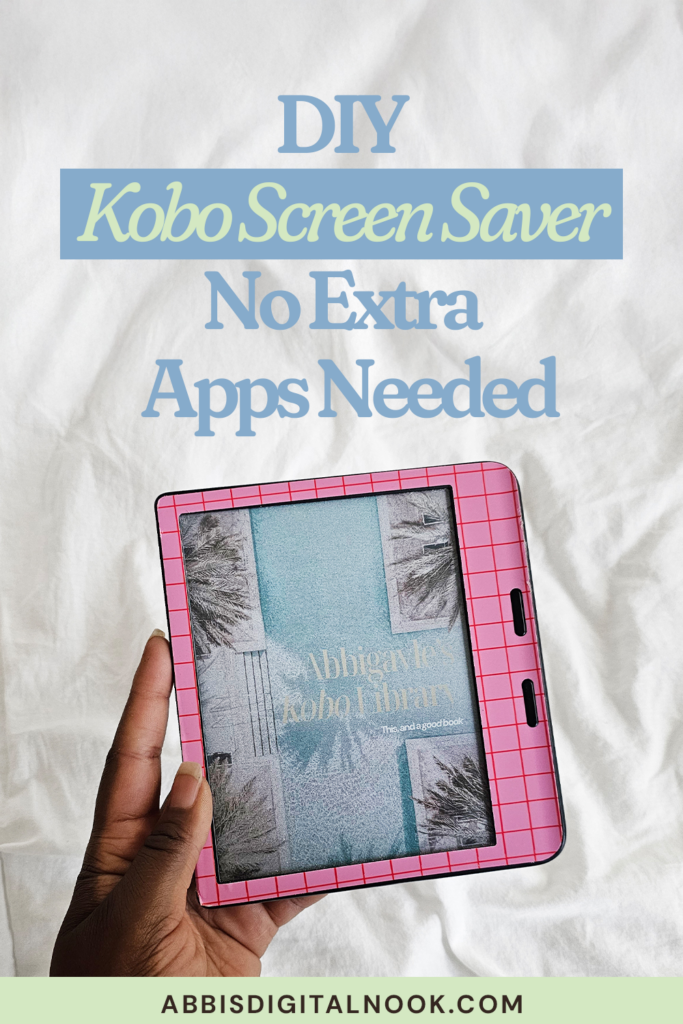
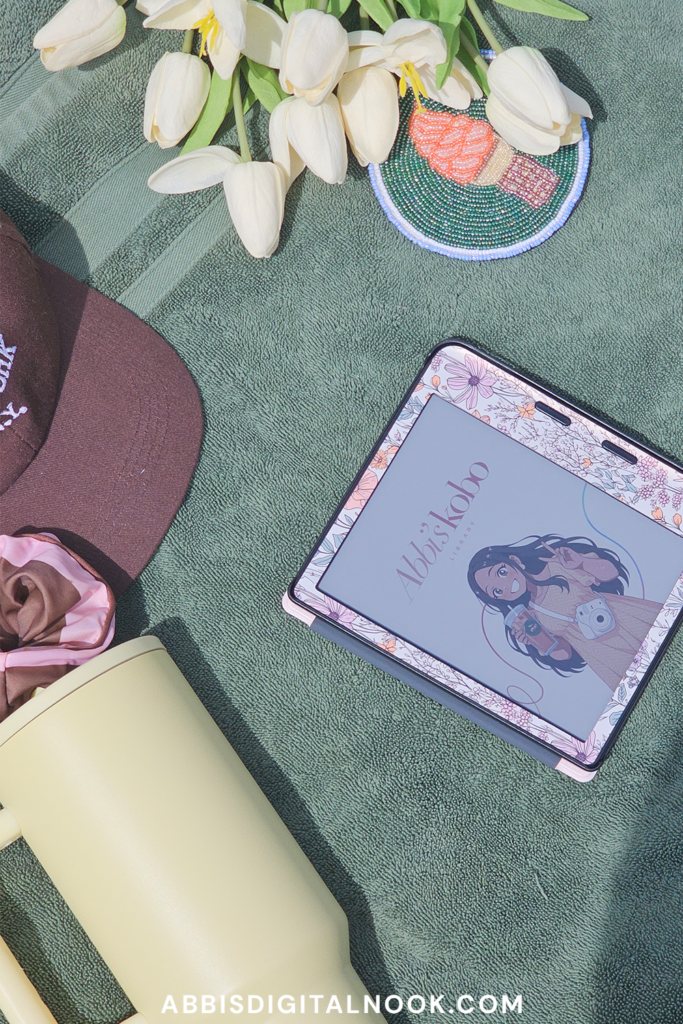
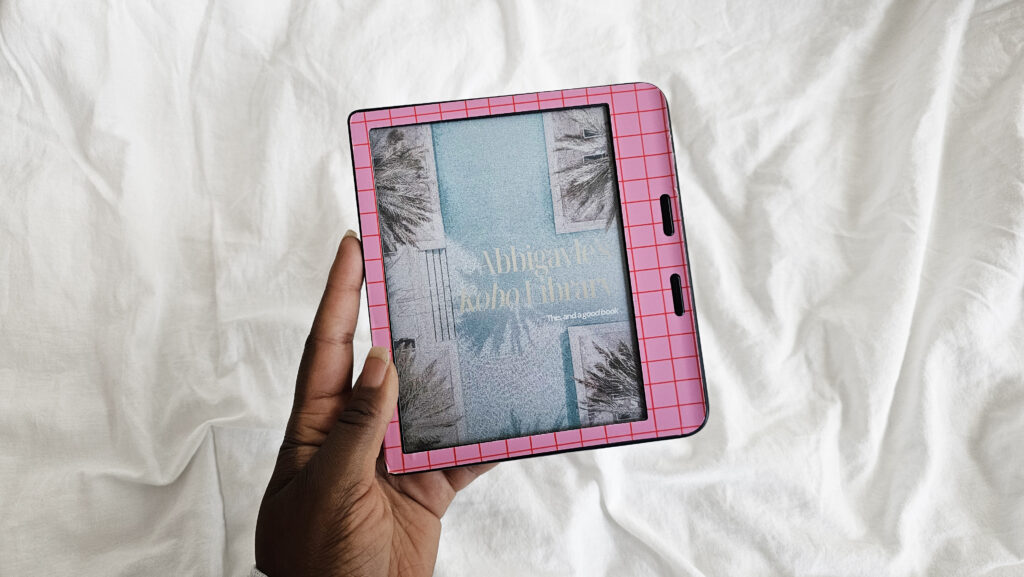
Learning how to create a custom Kobo lock screen is one of the simplest ways to personalize your Kobo e-reader, and you don’t need any special software to do it. Whether you’re setting up a cozy, bookish Kobo screen saver or swapping in your own illustrated design, this Kobo customization trick takes just a few minutes once you know where the hidden files are hiding. In this guide, I’m walking through exactly how I create a custom lock screen (also called a screen saver) for my Kobo, straight from the tutorial on my YouTube channel, plus extra tips for designing your own.
As an Amazon Associate, I earn from qualifying purchases. This post contains affiliate links, which means I may earn a small commission at no extra cost to you if you make a purchase through one of these links.
Watch the full video below, then follow along with the written steps and extra tips underneath.
Watch the Video Tutorial
What You’ll Need
Before you start, gather these three things:
- Your Kobo e-reader
- A computer (Mac or PC) with a USB cable to connect it
- A custom image saved as a PNG file — this can be an illustration you’ve made, a design pulled together in an app like Procreate, or artwork you’ve found and have the rights to use
If you’re shopping for a new e-reader or want to see exactly which Kobo I use for this tutorial, you can find it here: Shop my Kobo on Amazon.
Step 1: Connect Your Kobo to Your Computer
Plug your Kobo into your computer using its USB cable. Once it’s connected, your Kobo will show up as an external drive on your desktop. Double-click (or select) that drive to open it up.
Step 2: Reveal the Hidden Files
This is the step most people miss. Kobo keeps its system folders hidden by default, so you’ll need to unhide them:
- On Mac: press
Command + Shift + Period (.)while the Kobo drive window is open. This reveals all the hidden files and folders. - On Windows: open File Explorer, click the “View” tab, and check the box for “Hidden items.”
Once the hidden files appear, look for a folder called .kobo and open it up.
Step 3: Find (or Create) the Screen Saver Folder
Inside the .kobo folder, look for a folder named Screen Saver. If you’ve already customized your lock screen before, it’ll already be there.
If this is your first time, you’ll need to create it:
- Right-click (or use the “New Folder” option) inside the
.kobofolder - Name it exactly
screen saver, all lowercase
Quick tip: capitalization matters here. If you accidentally create it with a capital letter, your Kobo may not recognize the folder. Rename it in all lowercase if that happens.
Step 4: Add Your Custom Image
Open the Screen Saver folder and drag in your new lock screen image. Remember, it needs to be a PNG file.
A few things worth knowing about this folder:
- You can add more than one PNG to the folder, and your Kobo will automatically rotate between them each time the screen locks.
- If you’d rather have just one consistent lock screen (like I do), simply keep only one image in the folder.
- Want a different look later? Just swap the file out for a new one whenever the mood strikes.
Step 5: Eject and Test It Out
Once your image is in the folder, safely eject your Kobo from your computer. Then lock the screen by hitting the power button — you should immediately see your new custom lock screen in place of the default one.
Design Tips for Your Custom Lock Screen
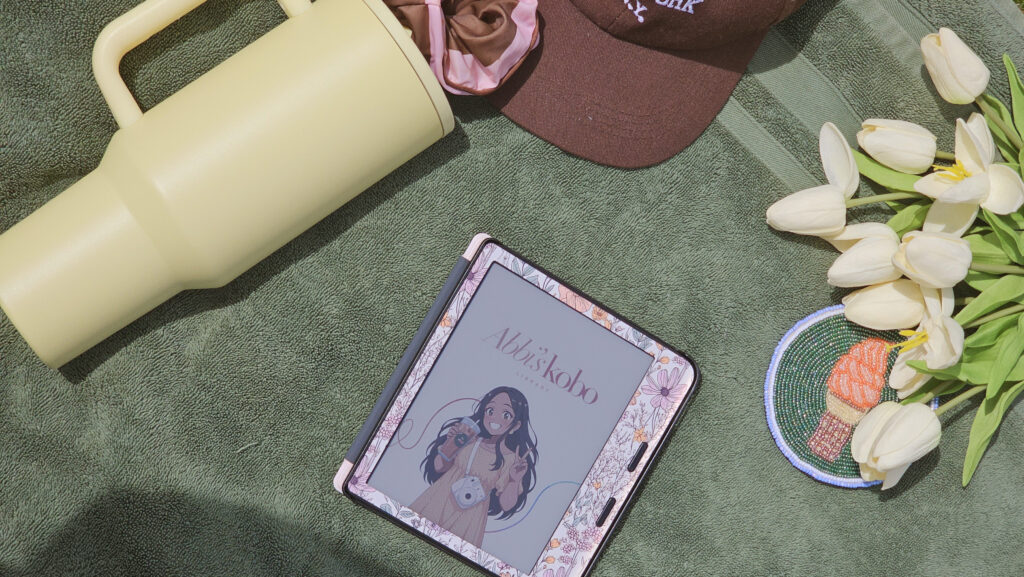
A few things I’ve learned from making my own screen savers in Procreate:
- Match your Kobo’s screen resolution so your image doesn’t look stretched or blurry.
- Keep contrast in mind — Bold, high-contrast designs tend to show up more clearly than subtle pastel tones.
- Pull inspiration from Pinterest for cozy, bookish aesthetics, then bring your favorite elements into Procreate to build something original.
- Save a few versions so you can rotate your lock screen seasonally without redoing the whole process each time.
Final Thoughts
That’s really all there is to it. It looks a little intimidating the first time because of the hidden folders, but once you’ve done it once, updating your Kobo’s lock screen takes just a couple of minutes. It’s a small customization that makes a big difference in making your e-reader feel personal.
If you’re looking for more of my favorite Kobo, Kindle, and cozy bookish tech finds, check out my full Amazon storefront.
If this tutorial helped you, give the video a thumbs up and subscribe to Abbi’s Digital Nook on YouTube for more Kindle, Kobo, and bookish tech content. See you in the next one!
Shop The Post


Pin & Save for later!