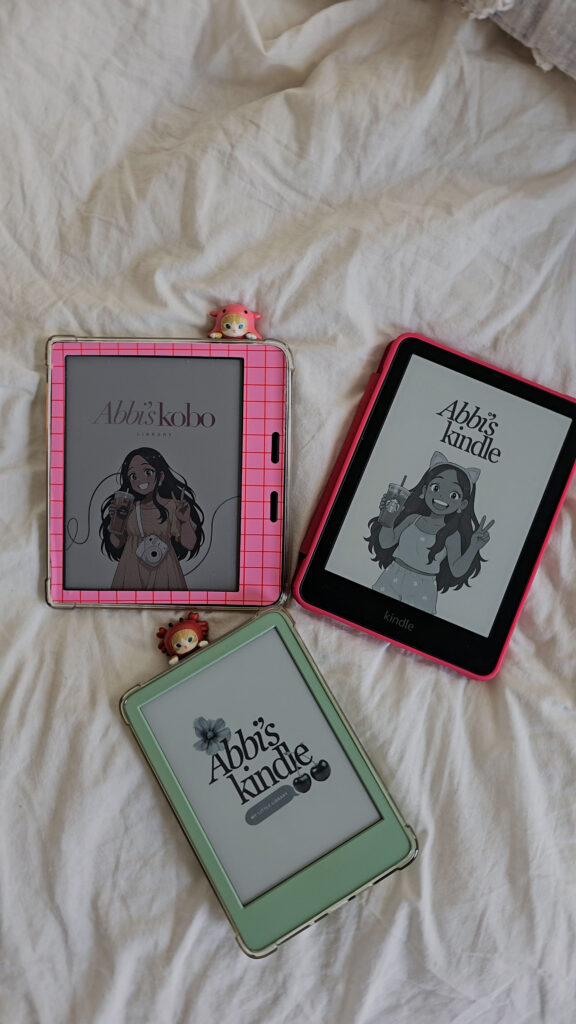
I own both a Kindle Paperwhite and a Kobo Libra Colour, and after two months of using the Kobo daily, I finally sat down and made a full list of every single pro and con I’ve run into. If you’re debating whether to switch from Kindle to Kobo, or you’re just curious what you’d be gaining and losing, this is everything I’ve learned so far, no fluff.
As an Amazon Associate, I earn from qualifying purchases. This post contains affiliate links, which means I may earn a small commission at no extra cost to you if you make a purchase through one of these links.
Watch the full video below, then keep reading for the complete written breakdown.
Watch the Video Review
Why I Got a Kobo When I Already Had a Kindle
I picked the Kobo Libra Colour specifically for two reasons: wide file format support and direct annotation. I read a lot of manga, webtoons, and graphic novels, and most of those come in CBZ or CBR format, which the Kobo reads natively with no conversion needed. I also wanted a device I could draw and write directly on without permanently marking up a physical book. The Kobo checked both boxes, so now I run a Kindle and a Kobo side by side.
The Pros
Color E Ink Display
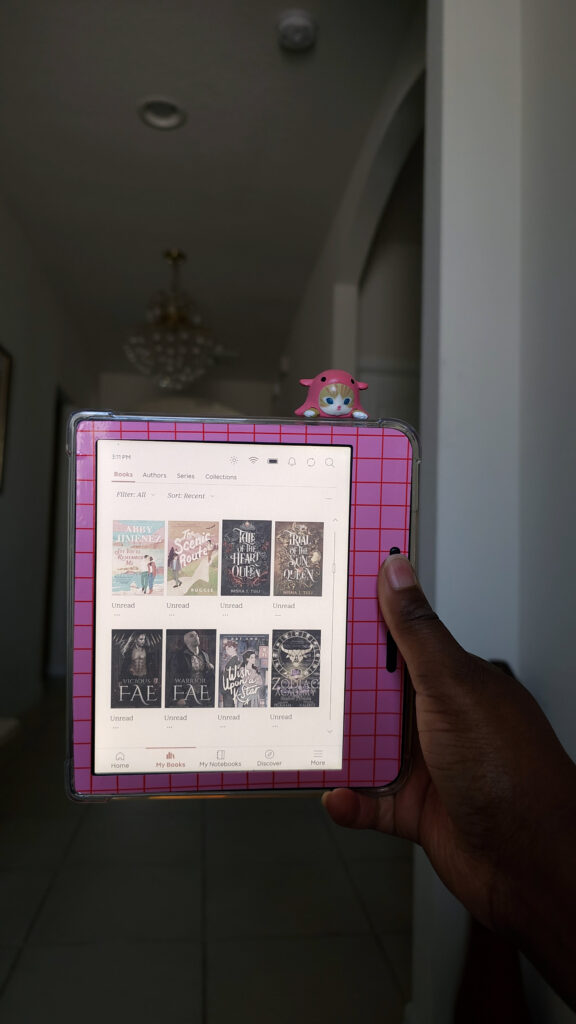
This was the whole reason I wanted a Kobo Libra Colour. Manga, webtoons, graphic novels, and color PDFs actually look like themselves instead of grayscale. You can also highlight in color, which sounds minor until you’re actually annotating.
Direct Annotation
You can write, doodle, and highlight directly on any EPUB or PDF, including library books. I do all of my annotating with the Meta Pen, a much cheaper alternative to Kobo’s own stylus that works just as well. The one limitation: you can’t annotate on manga, graphic novels, or webtoons in picture-heavy formats like CBZ, only on text-based book formats.
Physical Page Turn Buttons
I wanted buttons badly enough that I was originally eyeing the Kindle Oasis before it got phased out. The Kobo Libra Colour has them, and being able to hold the device in a protective case and press down instead of tapping the screen was a big selling point for me.
Adjustable ComfortLight PRO
The screen lighting automatically adjusts based on time of day, and you can set custom schedules for when it shifts to warmer tones. I don’t use it constantly, but it’s a genuinely thoughtful feature.
No Ads
Unlike Kindle, there’s nothing plastered on your home screen or lock screen trying to sell you a book. The Kobo store will suggest titles when you’re browsing, but it’s not shoved in your face constantly.
Landscape Mode
You can lock the screen into landscape and read that way, with the page buttons repositioning to match. The screen isn’t quite big enough to make two-page spreads worthwhile, but it’s a nice option if that’s more comfortable for your hands.
Built-In OverDrive (Libby)
If you’re outside the US, this is a huge one, since Libby isn’t accessible through Kindle outside the US. Borrowing a library book directly through OverDrive on the Kobo is fast and it lands on your device immediately.
Kobo Plus Subscription
It’s Kobo’s answer to Kindle Unlimited. It exists, but the catalog leans toward the most popular titles and is missing a lot of the indie authors that make Kindle Unlimited worth it for me.
Dropbox and Google Drive Integration
You can log into Dropbox or Google Drive directly on the device, and anything you save there, EPUBs, PDFs, documents, syncs wirelessly to your Kobo. Genuinely useful if you’re a student or read a lot of PDFs and documents.
Pocket Integration
In theory, you can save web pages to Pocket and read them on your Kobo. In practice, I go into this more in the cons, it’s more limited than it sounds.
32GB of Storage
That’s double what my 16GB Kindle offers. It sounds like a lot until you start loading webtoons and manga, which I’ll also get into below.
Bluetooth Keyboard Support
You can pair a Bluetooth keyboard and type your annotations instead of writing them by hand, and even use it to turn pages.
Custom Screen Saver
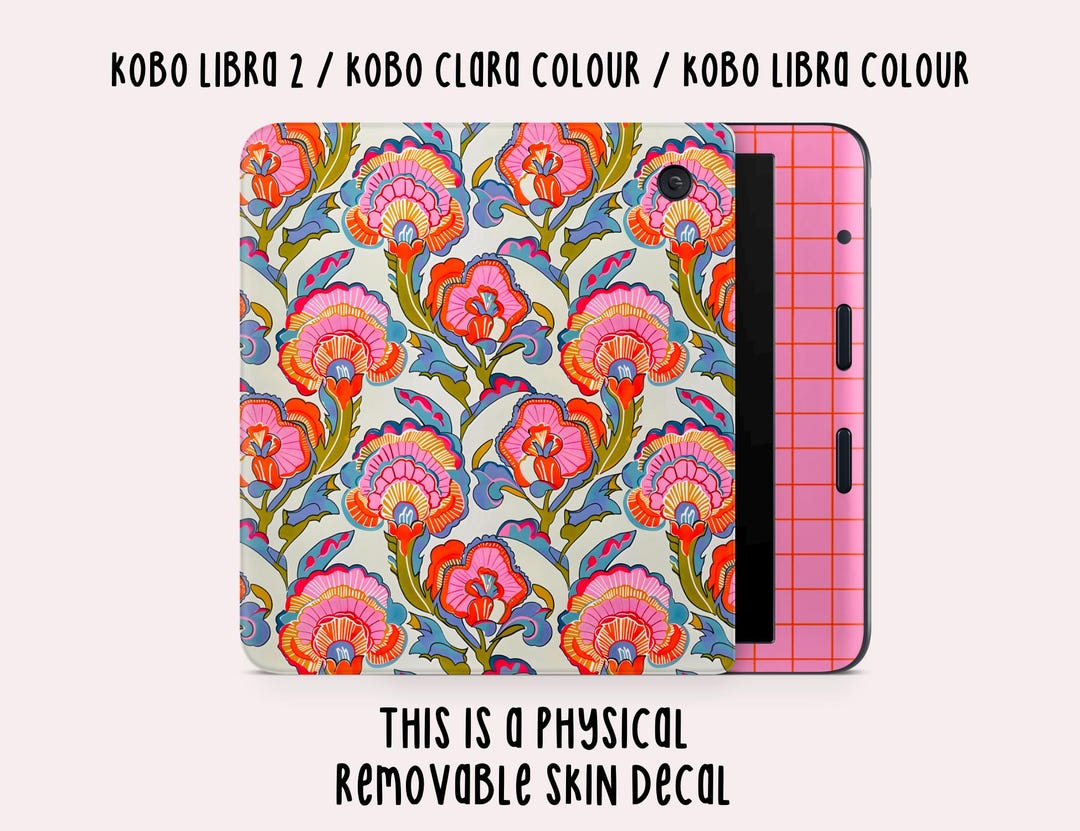
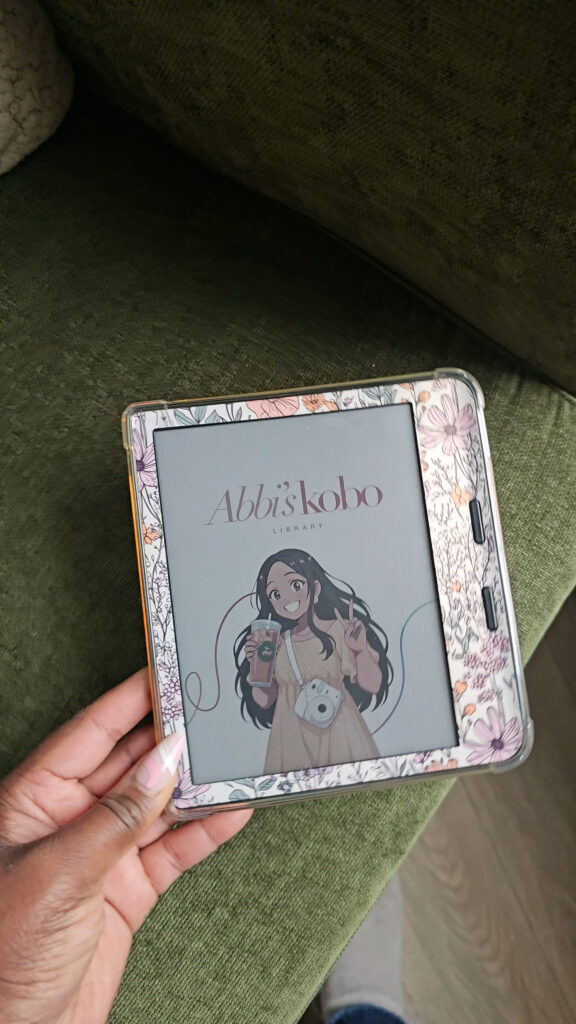
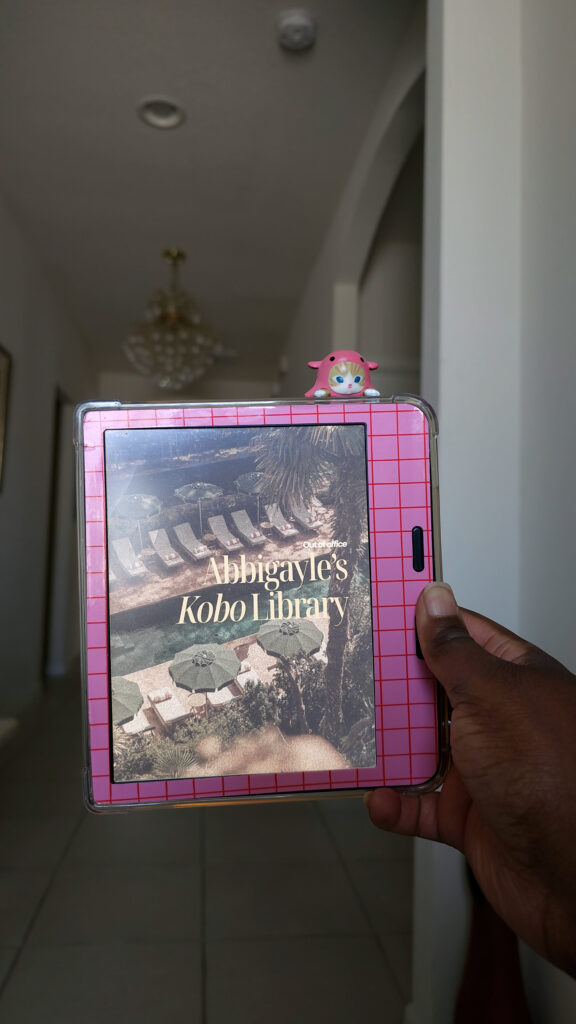
Unlike the Kindle, where your screen saver changes based on whatever book cover you’re reading, the Kobo lets you drop in your own image file as a permanent lock screen that stays put. I also decorated the outside of mine with a skin decal from Etsy to match, so the whole device feels personalized inside and out.
Waterproof Design
It’s rated waterproof. I have not personally tested this and don’t plan to, but it’s a nice safety net to have.
The Cons
Annotation Exports Are a Mess
If you want to pull your annotated pages off the device, say, to post on social media, the Kobo saves your highlights and your drawings as two separate image files with generic file names, not labeled by book or page number. You end up having to reconstruct everything yourself in Photoshop or another photo editor. There’s no reason this couldn’t sync to one organized file, and it’s genuinely one of my biggest frustrations with the device.
Annotations Can Disappear
If you adjust your text size, spacing, or zoom after you’ve already annotated a page, your drawings collapse into a small highlight box and the page resets. You can still access what you wrote, but it’s the same messy export process. The fix is simple: don’t change your layout mid-book.
No Annotation on Sideloaded Comics
You can annotate EPUBs, but CBZ files that you’ve sideloaded, meaning most manga and comics, can’t be drawn on directly.
No Filtering in the OverDrive Integration
The built-in OverDrive browser doesn’t let you filter by availability, genre, or language the way the Libby app does. Finding a book takes roughly three times as long through OverDrive on the device as it does through the Libby app. My workaround: I do all my searching in the Libby app, then just log into OverDrive on the Kobo to sync what I’ve already borrowed.
Only One Library Account at a Time
You can’t stay logged into multiple library systems simultaneously through OverDrive the way you can in Libby. Not a dealbreaker if you sync your borrowed books before switching accounts, but worth knowing.
Pocket Integration Is Mostly Useless
I tried saving several of the websites I actually read webtoons and manga on through Pocket, and none of them synced properly to the device. The Kobo’s browser also struggles badly with any page using heavy JavaScript or animated scrolling, so this ended up being a feature I basically can’t use.
Book Titles Don’t Show in Cover View
Your library shows book covers with a read/unread status, but not the title underneath. If you don’t recognize the cover, you’re out of luck unless someone in the comments knows a setting I’m missing.
Zooming Is Laggy
Pinch-to-zoom and the zoom slider both lag noticeably, especially in manga and PDFs. It’s not close to iPad-level responsiveness.
Still DRM Locked
A lot of people switch to Kobo assuming it solves the DRM problem. It doesn’t, most books from the Kobo store are still DRM protected, the same as Kindle, Barnes & Noble, and everyone else. The Kobo DRM is easier to strip than Kindle’s, but you’ll still need to convert files if you want them portable across devices.
No Wired Headphone Support
Despite having a USB-C port, you can only connect audio over Bluetooth.
No Accessibility Features
This is the con that would actually be a dealbreaker for some people. The Kobo has no assistive reader or text-to-speech at all. If you like to read while listening, which the Kindle does well, you won’t get that here.
Can’t Borrow Audiobooks Through Libby on the Device
You can borrow audiobooks in the Libby app, but they won’t transfer to or play on the Kobo itself. You have to listen in the Libby app separately.
Storage Fills Up Fast With Manga and Webtoons
32GB sounds generous, but I’d already used 11GB with just a few months of webtoons, graphic novels, and manga, and that’s without touching a single regular book. A single finished webtoon series can run close to half a gig on its own. If you read heavy visual content, budget for having to rotate books off the device regularly.
How I Actually Use My Kobo
I primarily use mine for webtoons, manga, and graphic novels. My workflow: I download a series from wherever I can find it (do your own research on trustworthy sources here), run it through a free tool called Kindle Comic Converter to resize it for the Kobo’s screen and format it for vertical scrolling, export it as a CBZ, then transfer it onto the device through Calibre. Reading it all back with the Kobo Libra Colour’s page buttons and color screen makes the extra steps worth it. It’s a few extra steps compared to just opening a book, but it works.
Final Verdict: Who Should Buy the Kobo Libra Colour?
I’d recommend it if you read manga, webtoons, or graphic novels, if you rely on library books through OverDrive (especially outside the US), if you want to take handwritten notes and doodles on your books with a stylus, or if you’re just tired of Kindle’s ads and heavier DRM.
I’d steer you elsewhere if you rely on text-to-speech or any accessibility features, if you read a lot of PDFs (the lag is real), or if you want a strictly cloud-based file system instead of manually managing storage.
Personally, I still keep both devices. The Kobo has become my go-to for manga and webtoons, and the Kindle stays in the rotation for regular books and audio. If you sideload your own content and don’t mind a few workarounds, the Kobo Libra Colour is one of the best options out there.
If you’re curious about the exact Kobo I use, or the stylus and case in this review, you can find them all on my full Amazon storefront.
If this review helped you decide whether to make the switch, give the video a thumbs up and subscribe to Abbi’s Digital Nook on YouTube for more honest Kobo, Kindle, and bookish tech reviews. See you in the next one!
Shop This Post