
Tired of those black borders showing up around your Kindle screensaver? I’ve got two methods for creating full-screen custom wallpapers for your Kindle Basic Matcha, quick, easy, and completely hassle-free. One of these methods is what most people online are already doing (and it’s the reason you’re getting black borders in the first place), and one is the method I actually use to get a true full-screen result. I’ll walk through both so you can see the difference for yourself.
As an Amazon Associate, I earn from qualifying purchases. This post contains affiliate links, which means I may earn a small commission at no extra cost to you if you make a purchase through one of these links.
Watch the full video below, then follow along with the steps underneath.
What You’ll Need
You’ll need a Kindle, plus something to design your wallpaper on, your phone, an iPad, or even just your laptop using Canva. I personally design mine in Procreate at a file size of 1667 x 2266 and export everything in grayscale before moving it over to my laptop.
Method 1: Using Calibre (My Go-To Method)
This is the method that gets you a true full-screen wallpaper with zero black borders. Here’s how it works:
- Design your wallpaper and save it as a PDF, sized to your Kindle’s exact screen dimensions.
- Open Calibre (a free app you can find with a quick Google search) and drag your PDF file into it.
- Click on the file in Calibre, then hit “Convert Books” to convert it to an EPUB. I usually update the author name to something like “Abbi’s Digital Nook” while I’m in there.
- Save the converted EPUB, then navigate to it through your file explorer: your main drive, then your Calibre Library folder, then whatever you’ve named your library.
- Go to amazon.com/sendtokindle and drag and drop the EPUB file into the box in the middle, then hit send. It’ll show up on your Kindle in about 3 to 5 minutes.
Once it’s on your Kindle, select the file and you’ll see it fill the entire screen with no black borders or edges, exactly what we’re going for.
Method 2: Using Online File Converters (The Common Method — and Why It Doesn’t Work as Well)
This is the method I see a lot of people using on YouTube, and honestly, it’s not the best option since you can’t control your file size, which is exactly why you end up with black borders. Here’s how it works, for comparison:
- Take your design (saved as a PDF, JPEG, or PNG) and upload it to a website called Convertio, then convert it to an EPUB.
- Take that new EPUB file to a second website, onlineconverter.com/change-epub-cover, and upload both the EPUB and your original image file. Set the image resize option to “fill,” then let it convert.
- Download the finished file and send it to your Kindle the same way as before, through Send to Kindle.
One thing worth noting: I’m not a huge fan of relying on random online converter websites, since you don’t always know where your files are actually going once you upload them. Worth keeping in mind if you go this route.
Side-by-Side: The Difference Is Obvious
When I compared both files on my actual Kindle, the difference was immediate. The Calibre version filled the entire screen perfectly, exactly what I wanted. The online converter version came out sized like a standard book cover instead, and had a visible black border around it. That’s the whole reason Calibre is the method I stick with for lock screens.
Final Thoughts
If you want a genuinely full-screen, border-free custom wallpaper on your Kindle, Calibre is the way to go. It takes a few extra steps up front, but the payoff is a lock screen that actually looks intentional instead of stuck in the middle of a black box.
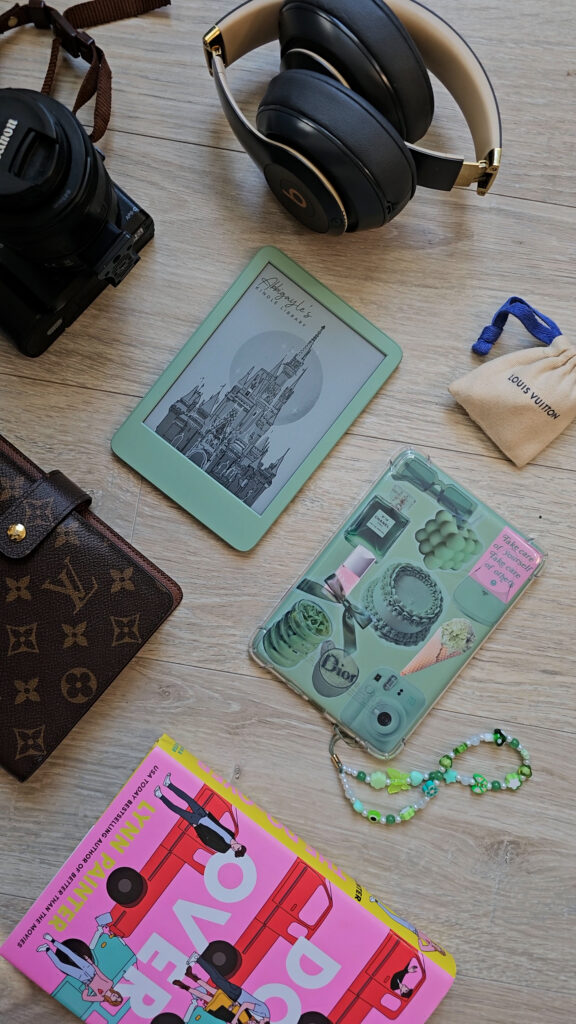
Shop my favorite Kindle accessories on my Amazon Storefront, and check out my free downloadable wallpapers on my blog: abbicreatesstudio.com/blogs/abbis-digital-nook
If this was helpful, give the video a thumbs up and subscribe to Abbi’s Digital Nook for more Kindle tips and tricks!
Shop the post!


