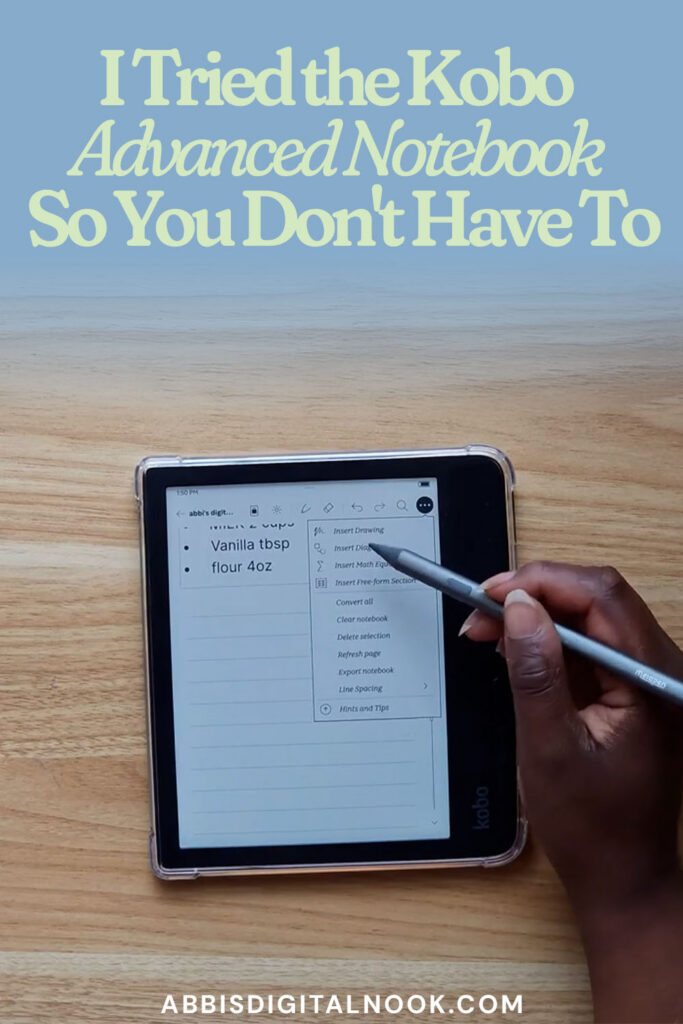
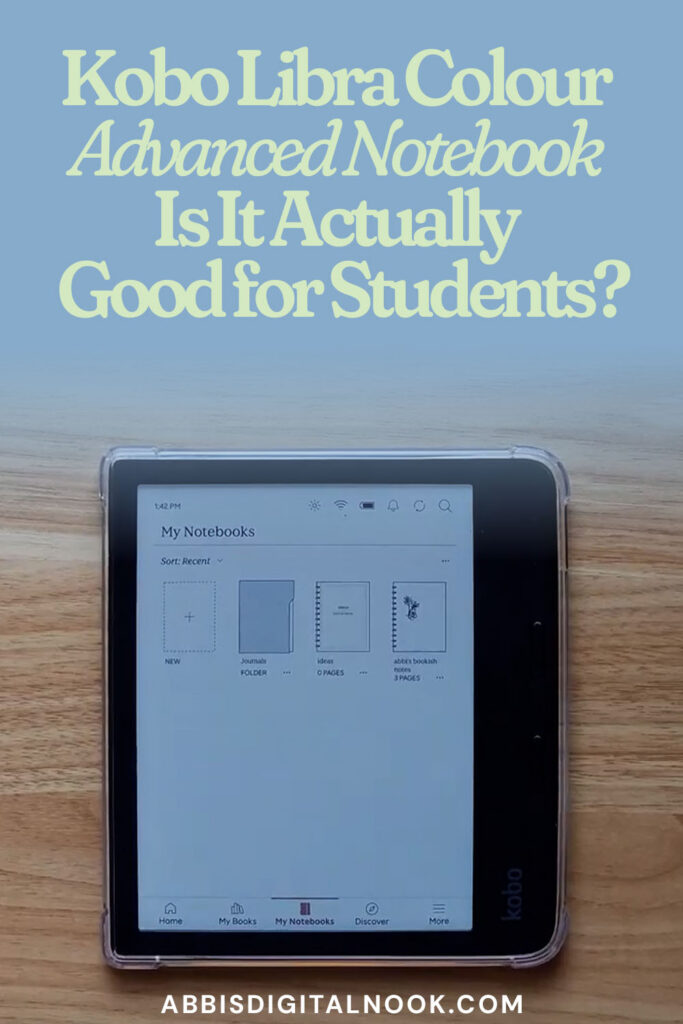
The Kobo Libra Colour’s Advanced Notebook feature promises a lot: turn your handwriting into text, solve equations, draw graphs, and clean up your sketches into polished diagrams. On paper, it sounds like the ultimate study tool. So I sat down with my Kobo and put every part of it to the test to see if it actually holds up, or if it’s more of a fun extra than something you’d want to rely on for studying.
As an Amazon Associate, I earn from qualifying purchases. This post contains affiliate links, which means I may earn a small commission at no extra cost to you if you make a purchase through one of these links.
Watch the full video below, then keep reading for the honest breakdown of everything I tested.
Watch the Video Review
Shop The Post


What Is the Advanced Notebook Feature?
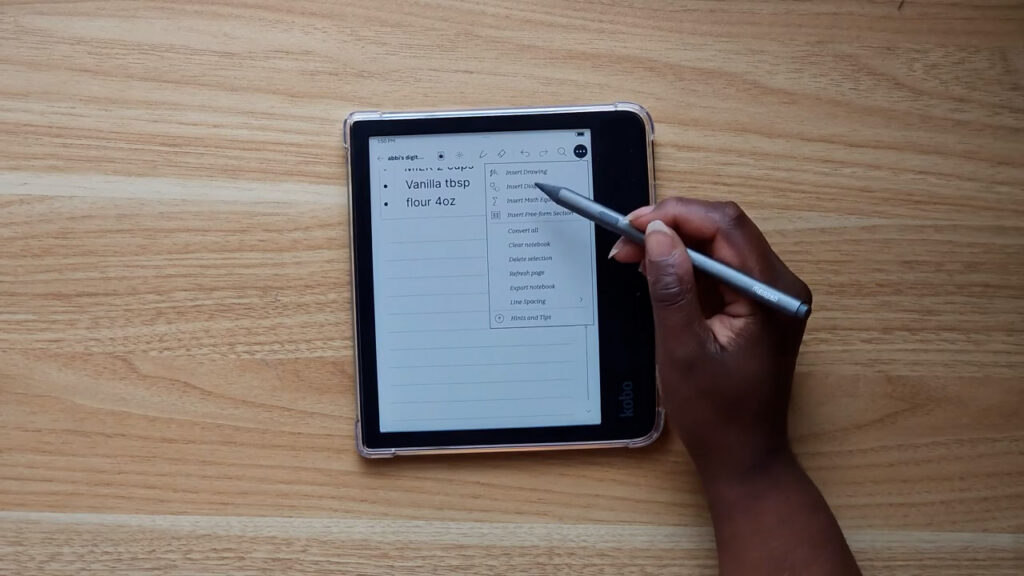
To find it, hit “New” in Notebooks and select “Create Advanced Notebook,” then give it a title (it really doesn’t matter what you call it). This unlocks a set of tools beyond a regular notebook: handwriting-to-text conversion, a separate drawing mode, math equations, graphing, and diagrams. I wanted to test each one to see how well the Kobo Libra Colour actually delivers on the promise.
Handwriting-to-Text: Does It Actually Work?
First up, I wrote out a shopping list of groceries and other odds and ends. After double-tapping to convert it to text (you can double-tap again to enlarge the text box to fit the lines), it didn’t quite grasp everything I’d written.
So I tried again, this time writing a little neater. It still wasn’t exactly tidy handwriting, but it got most of it right this time. It just couldn’t decipher the number 2, and it consistently struggled with the letter Z.
My honest takeaway: if you don’t have very neat handwriting, this feature probably won’t get your notes right.
Drawing Mode and the Meta Pen 2
You can also insert a drawing, which opens a separate box for sketching that isn’t converted to text. I used this space to test out how it felt to draw on the Kobo, and I have to say, I really love using the Meta Pen 2 with it. It feels smooth, almost like writing with an actual ballpoint pen. I’ve mentioned this in past reviews, but if you’re looking for a stylus that pairs well with the Kobo, the Meta Pen 2 is worth it.
Can It Solve Math Equations?
The next section is equations, which claims to let you handle math problems right in the notebook. I wanted to see if it could handle basic algebra, so I wrote out a simple equation and asked it to solve for X. No matter how many different ways I tried writing it, it couldn’t solve for X at all.
Graphing and Diagrams
Graphing is a genuinely fun feature. You can draw your own graphs directly in the notebook, which is a great tool if you need graph paper for studying.
Diagrams are supposed to work similarly to shape recognition, smoothing out whatever you draw into a clean, scalable shape. I put this to the test, and it didn’t really understand my shapes. That said, the scaling on the shapes it did recognize was genuinely impressive.
Final Verdict: Is It Good for Students?
Overall, the Advanced Notebook feature is fun to play with, but I can’t say it’s a reliable study tool. Between the shaky handwriting-to-text conversion, an equation solver that couldn’t handle basic algebra, and diagram recognition that struggled with simple shapes, I wouldn’t recommend relying on this feature for studying.
If you’re curious about the Kobo Libra Colour itself or want to see the stylus I used in this review, you can find both on my full Amazon storefront.
If this review helped you decide whether the Advanced Notebook is worth it, give the video a thumbs up and subscribe to Abbi’s Digital Nook on YouTube for more honest Kobo, Kindle, and bookish tech reviews. See you in the next one!
Shop the post!
Pin for later