
Amazon just quietly rolled out a brand new Assistive Reader feature for Kindle, and as of publishing this, they haven’t officially announced it. It’s not showing up automatically for every device yet either, so if you want it now instead of waiting, you can install the update manually. Here’s exactly how I did it, plus my honest first impressions of how the new feature actually sounds and works.
As an Amazon Associate, I earn from qualifying purchases. This post contains affiliate links, which means I may earn a small commission at no extra cost to you if you make a purchase through one of these links.
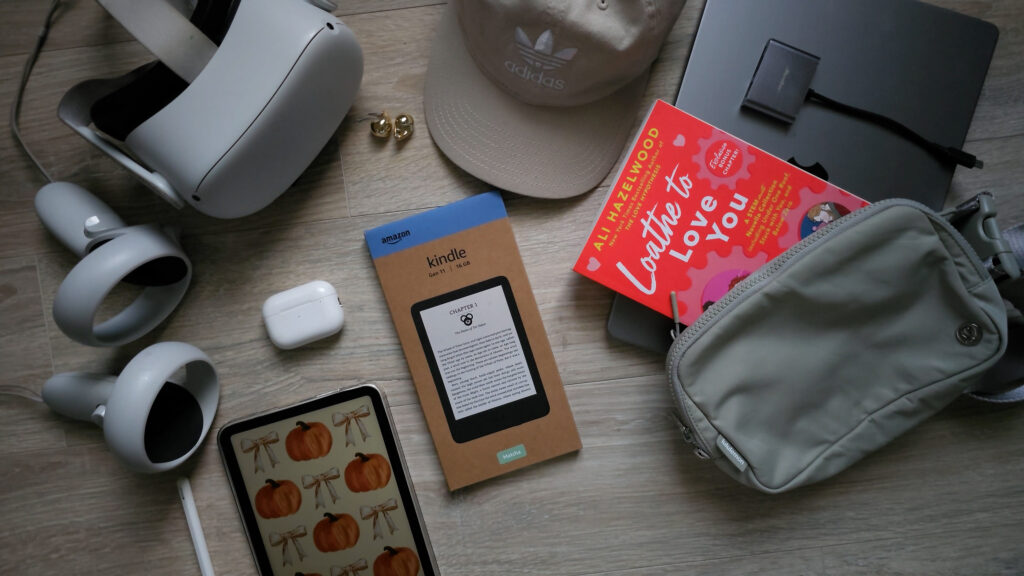
Watch the full video below, then follow along with the written steps underneath.
Watch the Video Tutorial
What’s New About Assistive Reader?
Kindle already had a feature called Screen Reader, which puts the entire device into read-aloud mode and narrates everything on the page. It technically works, but it’s clunky to navigate and honestly more of a hassle than a help for most people.
The new Assistive Reader is different. It works more like the read-aloud feature you’d find in a Kindle app on your phone: tap the top of the screen, pull up the menu, and select Assistive Reader to start listening to whatever book you’re currently reading. It’s something Kindle users have been asking for, and it’s genuinely exciting to see them add it, even if the text-to-speech voice itself is still pretty clearly robotic rather than anything like an Alexa-quality voice.
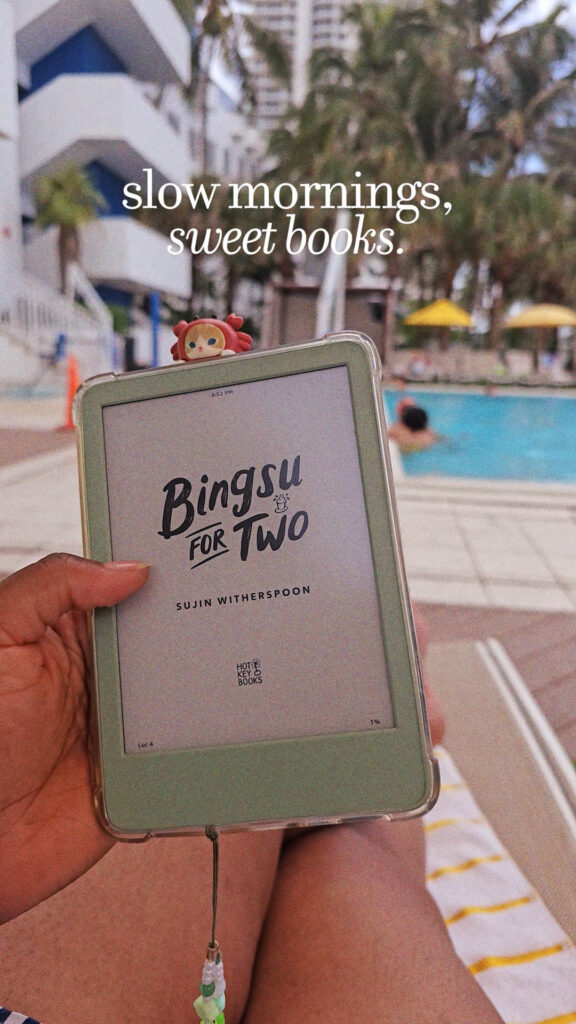
Step 1: Check Your Current Software Version
The newest software version at the time of this update is 5.18.4.0.1. You can check your current version in your Kindle’s settings under Device Info.
Step 2: Download the Update Manually (Mac Instructions)
Search “how to install your Kindle update” on Google, and Amazon’s official manual update page should be the first result. From there:
- Go to the Kindle e-Reader software updates section and find your exact device (mine is the Kindle Paperwhite Signature Edition, 12th generation, 2024).
- Download the update file. It will save as a file ending in
.bin. Don’t open it, just leave it in your downloads. - Plug your Kindle into your computer with a USB cable.
- On a Mac, download the free Android File Transfer app (Kindle also has its own file access app, but I personally prefer Android File Transfer) so you can view your Kindle’s file structure.
- Once your Kindle appears in Android File Transfer, drag and drop the
.binupdate file directly into the Kindle folder. - Close the app and safely disconnect your Kindle.
Step 3: Install the Update on Your Kindle
Go to Software Updates in your Kindle’s settings. You should now see a prompt to install the update you just transferred. Tap to install and let it run through the update process.
Step 4: Turn On Assistive Reader
Open any book, tap the screen to bring up the menu, and look for “More.” Assistive Reader will be listed there. Toggle it on, and you’ll be prompted to connect headphones or a speaker before it starts reading.
My First Impressions
The voice is rough, there’s no getting around it, it’s clearly a text-to-speech robot voice, and I personally bump the speed up to 1.5x, which tends to smooth it out slightly. But the bigger win here is how much easier it is to actually use. Before this update, turning on read-aloud meant navigating through Screen Reader’s full accessibility mode, which slowed down the whole device. Now I can just tap the screen and turn it on directly, no extra steps.
A couple of rough edges I ran into: I haven’t figured out how to make it start reading from a specific spot on the page yet, and if you tap the middle of the page to try to reposition it, it can accidentally turn the page and restart from the top. I’m still working out the exact controls, so if I figure out a cleaner way to navigate it, I’ll follow up with a more in-depth tutorial.
Final Thoughts
Rough voice aside, this is a genuinely useful update and a great sign that Kindle is listening to what readers have been asking for. If you like to read while multitasking, at work, in the car (as a passenger), or just relaxing, it’s worth manually grabbing this update now instead of waiting for it to roll out automatically.
For more of my Kindle tips, updates, and e-reader recommendations, check out my full Amazon storefront.
If this helped you update your Kindle, give the video a thumbs up and subscribe to Abbi’s Digital Nook on YouTube for more Kindle tips and e-reader updates. See you in the next one!

