
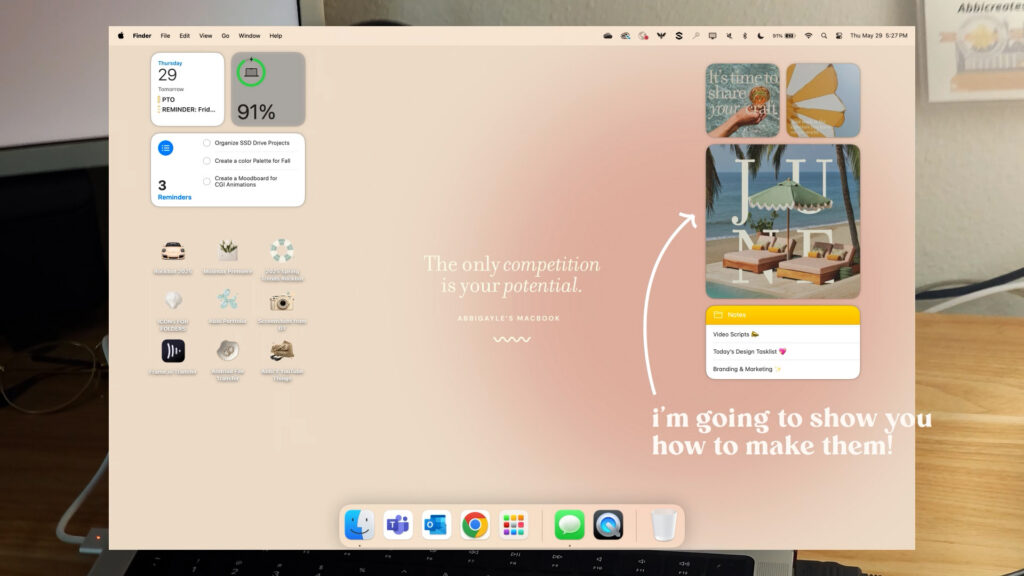
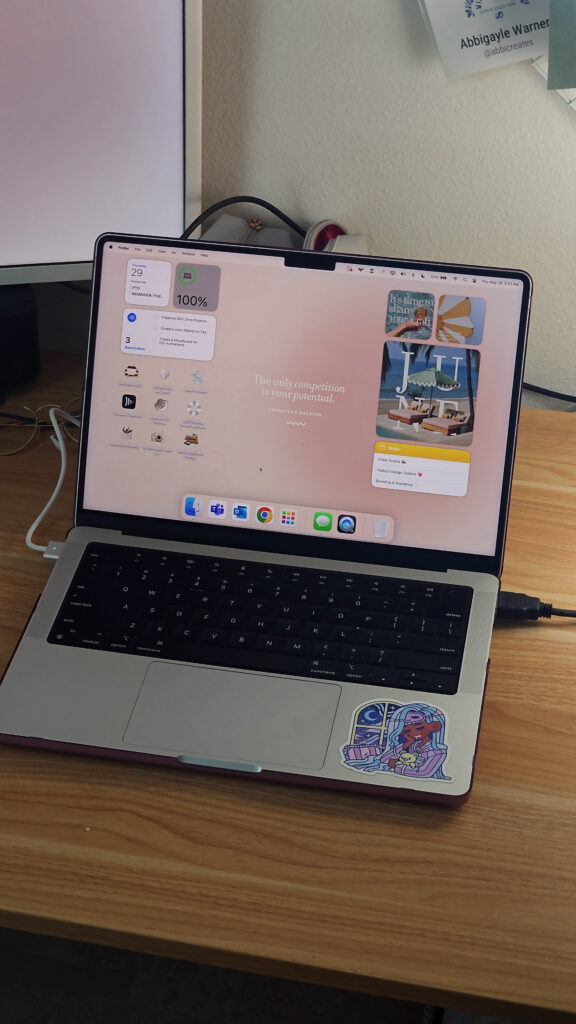
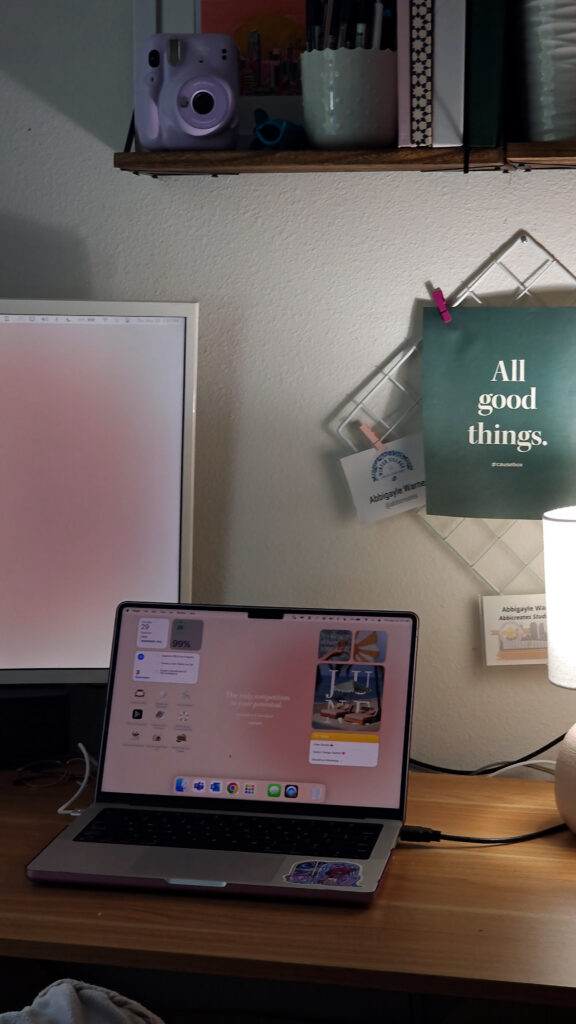
I wanted to give my MacBook a full aesthetic glow up, colorful widgets, custom emoji folder icons, a hand-made aura background, and Pinterest-inspired typography photos, all without downloading a single third-party app. Here’s exactly how I did it, step by step, using tools you likely already have or can access for free.
As an Amazon Associate, I earn from qualifying purchases. This post contains affiliate links, which means I may earn a small commission at no extra cost to you if you make a purchase through one of these links.
Watch the full video below, then follow along with the written steps underneath.
Watch the Video Tutorial
Quick note: I have the MacBook Pro 14″ with the M4 Max chip, but this works on any MacBook. I used Adobe products (Photoshop, Illustrator, and XD) for the design work in this tutorial, but the exact same concept works in Canva, Windows Paint, or whatever design program you already use, just swap the tool, not the steps.
Step 1: Make a Custom Aura Background
Start a new document sized to your exact screen resolution (mine is 3024 x 1964 at 300 pixels) with a transparent background. Drop in a color palette image you like from Pinterest for reference, then fill your canvas with your chosen base color using the paint bucket tool.
Next, draw a circle with the ellipse tool (hold shift to keep it perfectly round), fill it with your accent color, and place it off-center rather than dead center for a more natural look. Convert the shape into a smart object, then apply a Gaussian blur, somewhere around 100 usually looks right, adjusting to taste. That soft blurred circle is your “aura,” and it’s the base of the whole wallpaper.
Step 2: Choose an Aesthetic Font and Add a Quote
If your system fonts feel too plain, check Adobe Fonts (or a free resource like dafont.com) for something with more personality. I landed on Philosopher. I searched Pinterest for a quote that matched the vibe I wanted, since this MacBook lives at work, I went with something office-appropriate, added it to the center of my wallpaper, and italicized a couple of key words to make them pop.
Step 3: Build Custom Emoji Icons
Search Pinterest for “iOS 18 icons” to find a batch of cute icon images that match your color palette, then bring them into Photoshop and use the remove background tool to isolate each one, saving them as individual PNGs. If an icon you already like doesn’t quite match your new palette, select the color you want to change, duplicate it onto its own layer, and use the Hue/Saturation tool to recolor it by eye until it fits.
Keep every icon in a uniform square canvas (I used 1080 x 1080) so they all end up consistent in size. For an extra personal touch, I made a few small four-point stars in Illustrator and tucked them under a handful of the icons.
Step 4: Turn Your Widgets Full Color
By default, Mac widgets shift to a grayscale monochrome look when your desktop isn’t in focus. If you’d rather they stay in full color all the time, you can toggle that off in your widget settings.
Step 5: Swap Your Folder Icons
Open the icon image you want to use, copy it (Command+C or right-click and Copy), then right-click the folder or app you want to change and select Get Info. Click the small icon at the top of that window and paste (Command+V). Repeat for every folder or app icon you want to update.
Step 6: Set Up Your Home Screen Widgets
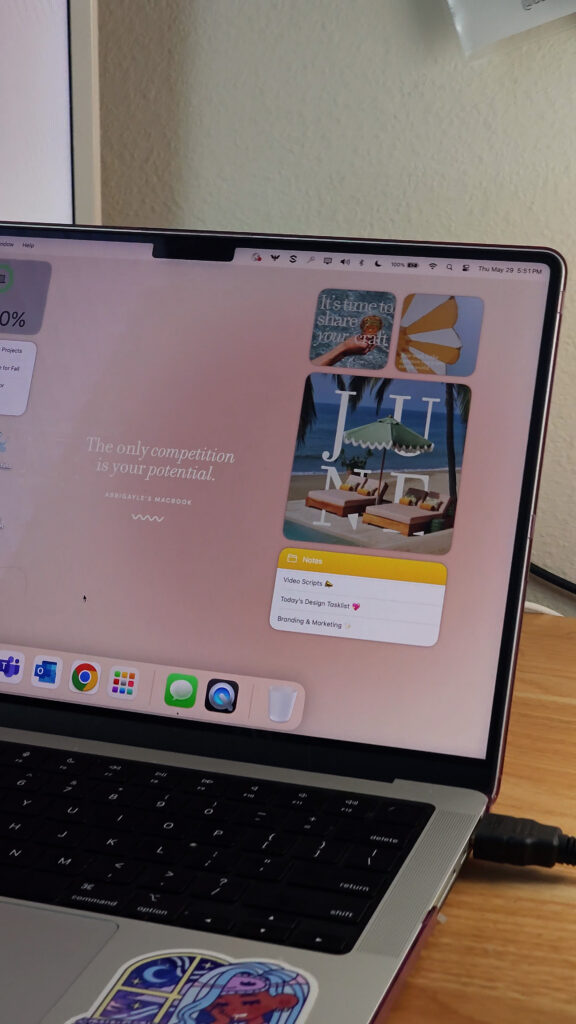
Right-click your desktop and choose Edit Widgets to browse your options. I split mine into two zones: a work-focused left side (Outlook, Reminders, and my folders) and a more visual right side built around a photo widget.
Step 7: Make Pinterest-Inspired Typography Photos for Your Photo Widgets
This is how I got custom photo widgets onto my desktop without any third-party app. First, pick a small set of images from Pinterest that match your month or mood (I searched things like “beach vibes aesthetic” and “work hard quotes”). Bring your chosen images into Photoshop, add a quote in the same font you used for your wallpaper, darken the image slightly behind the text so it’s legible, and finish with a black overlay layer set to a light noise/grain for a more vintage, film-like feel.
Once your images are ready, open the Photos app and create a separate album for each widget you plan to fill (for example, one album per widget placement). Drop the matching image into each album. Then go back to Edit Widgets, right-click your photo widget, and choose the album, it will pull directly from that album.
Step 8: Change Your Mac’s Accent and Highlight Colors
In System Settings, under Appearance, you can change your accent color and highlight color to match your new palette. I matched mine to the pop of yellow and peach tones in my wallpaper and widget photos so everything felt cohesive.
Step 9: Fine-Tune and Clean Up
Once everything’s in place, go back through and swap out any icon that doesn’t feel quite right (I ended up replacing one that clashed with a beachier option), and clean up your dock by removing anything you don’t use often.
Finishing Touch: A Cute MacBook Case
To match the whole aesthetic on the outside too, I use a snap-on case that adds a nice textured grip. Mine’s in pink to match my bag.
A Few Notes
This entire setup can be recreated in Canva if you don’t have access to the Adobe suite. And if you’re doing this on a work laptop like I am, double check what you’re allowed to install first, mine doesn’t allow third-party apps or iCloud login, which is exactly why this whole method sticks to built-in Apple tools only. This customization is for personal use.
If you’re shopping for a case like mine, you can find it on my full Amazon storefront.
If this tutorial helped you glow up your own MacBook, give the video a thumbs up and subscribe to Abbi’s Digital Nook on YouTube for more cozy tech tips and aesthetic setups. See you in the next one!
Shop this post!


