Adding a library card to your Kobo is the fastest way to borrow free ebooks straight from your public library — no Libby app required. Your Kobo has a built-in Overdrive integration that lets you sign in with your library card right on the device and start downloading library books in minutes.
This post contains affiliate links. If you buy through one, I may earn a small commission at no extra cost to you — thank you for supporting the channel!
If you’ve been eyeing the Kobo Libra Colour but weren’t sure if you’d still be able to use your public library for free ebooks, I have great news: not only can you borrow library books on it, you can do it without ever opening the Libby app.
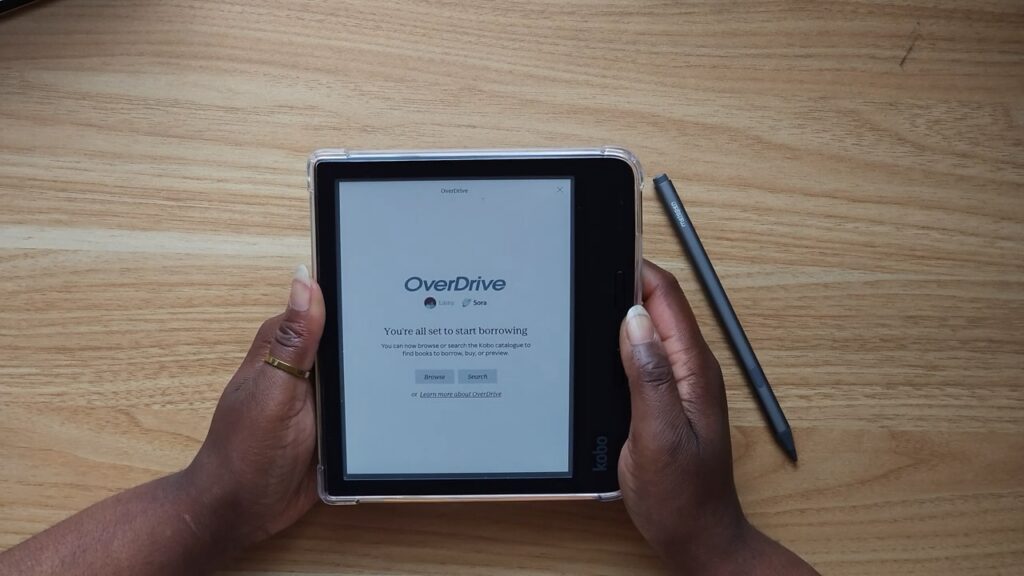
In my latest video, I walk through the entire process start to finish — and it genuinely took me under three minutes. Watch it here, or keep scrolling for the full written, step-by-step guide.
Why Add Your Library Card Directly to Your Kobo?
Most people assume that borrowing library ebooks means downloading the Libby app, browsing on your phone, then somehow transferring the book to your e-reader. That’s true for Kindle owners — but it’s not how it works on a Kobo. Kobo devices have Overdrive built directly into the settings menu, which means you can browse your library’s entire digital collection, place holds, and download books — all from the device itself. No second app, no syncing between devices, no hassle.
This is one of the biggest reasons I recommend a Kobo over other e-readers for anyone who reads library books regularly. It’s also one of my favorite features on the Kobo Libra Colour specifically, since the color Kaleido screen makes browsing book covers in the library catalog so much nicer than a plain grayscale display.
What You’ll Need Before You Start
- A Kobo e-reader (this works the same way on the Kobo Libra Colour, Clara Colour, Clara BW, Libra 2, and most recent Kobo models)
- An active library card in good standing with a library that partners with Overdrive/Libby (most public libraries in the US, Canada, UK, and Australia do)
- Your library card number and PIN
- A Wi-Fi connection
That’s genuinely it. No account creation, no separate sign-up.
Step-by-Step: How to Add Your Library Card to Kobo Overdrive
Here’s the exact process I show in the video:
- Open Settings. From your Home screen, tap the More button at the bottom, then tap Settings.
- Find the Overdrive tab. Tap on it, then tap Get Started.
- Add your library. On the next screen, tap Add Library and search for your public library by name (I added both New York Public Library and a Florida library card, since I use two).
- Sign in. You’ll be given the option to sign in via QR code with your phone, or to sign in directly on the device. I always choose sign in on this device since I have my card number memorized.
- Enter your card number and PIN. Once you type these in, you’re signed in and ready to borrow.
Your Kobo will remember your login after this, so you won’t need to repeat these steps unless you sign out.
How to Browse and Borrow Library Books on Your Kobo
Once you’re signed in, you’ll see two options: Browse or Search. I personally love using Browse, because it shows you all the curated collections your local librarians have put together — similar to what you’d see in the Libby app. It’s a great way to find your next read if you’re not sure what you’re in the mood for, and I always check the “BookTok” or trending collections first.
When you find a book you want, tap it, then tap to place a hold or check it out if it’s available. You’ll see the screen say “Connecting,” and once your item checks out, tap Go to Books. From there, the book downloads directly to your Kobo library. When your loan period ends (usually around 20 days, depending on your library), the book simply disappears — no returning it, no late fees.
A Quick Note on Multiple Library Cards
If, like me, you have cards from more than one library system, know that Kobo doesn’t currently support having multiple libraries active at once. You’ll need to sign out of one and sign into the other to switch. It’s a small inconvenience, but since your device remembers your login, it’s a one-time swap rather than something you have to redo constantly.
Customizing Your Reading Experience on Kobo Libra Colour
Once your library book downloads, it’s worth spending a minute adjusting your reading settings — especially on the Kobo Libra Colour, since the default text size can start out pretty small. Here’s what I did:
- Font: I tried out every font available and landed on Rakuten Sans — it’s clean, crisp, and easy on the eyes for long reading sessions.
- Text size: I bumped mine up a couple of sizes from the default so it’s comfortable without feeling like I’m losing too much of the page.
- Line spacing: I set mine to the largest option. This gives me room to jot notes directly between the lines, which I love doing with digital annotation.
- Start-date tracking: Every time I start a new book, I jot down the date and time in the margin. It’s a fun little habit that lets me look back on my reading journey later.
These small tweaks make a huge difference in how enjoyable your library books are to read, and they only take a minute to set up once.
Kobo Overdrive vs. the Libby App: Which Is Better?
To be fair and balanced: the built-in Overdrive integration on Kobo is seamless for adding a book you already know you want, but it isn’t quite as feature-rich as the Libby app when it comes to browsing and filtering. Libby lets you filter by genre, availability, format, and more in ways that Kobo’s on-device browser doesn’t yet support.
That said, for the simple task of finding a book and getting it onto your device, Kobo’s Overdrive integration is genuinely easy and, in my experience, faster since there’s no second device or app involved. If you want the best of both worlds, you can browse and place holds in the Libby app on your phone, then let your Kobo sync those same loans over Wi-Fi.
Frequently Asked Questions
Does the Kobo Libra Colour support Overdrive and Libby?
Yes. The Kobo Libra Colour has Overdrive built directly into its settings, and it can also sync loans placed through the Libby app.
Is adding a library card to Kobo free?
Yes, completely free. All you need is an active library card from a participating public library.
How long can I keep a library book on my Kobo?
Loan periods are set by your library, but mine are typically around 20 days. The book automatically disappears from your device once the loan expires — there are no late fees.
Can I use two different library cards on one Kobo?
You can add multiple cards, but Kobo only allows one active at a time. You’ll need to sign out and sign back in to switch between libraries.
Final Thoughts
Adding a library card to your Kobo takes less than three minutes and instantly unlocks free access to your local library’s entire digital catalog — no extra apps required. If you’re shopping for an e-reader that makes library borrowing this simple (plus gives you a gorgeous color screen for browsing book covers), the Kobo Libra Colour is the one I personally use and recommend.
Watch the full walkthrough on YouTube, and if it helped you out, give it a like and subscribe for more e-reader tips!


Pin & Save for later!