
Ready to explore the Kindle Basic 11th generation in Matcha? After a few weeks of daily use, I’m doing a deep dive into all of its standout features, the customization tips I’ve picked up, and why I think it’s such a solid pick for book lovers. From the home screen to hidden settings, here’s everything I’ve learned so far.
As an Amazon Associate, I earn from qualifying purchases. This post contains affiliate links, which means I may earn a small commission at no extra cost to you if you make a purchase through one of these links.
Watch the full video below, then keep reading for the full walkthrough.
What’s on the Kindle Home Screen?
Your home screen is basically Amazon Seller Central for books. At the top there’s a search bar where you can look up anything, whether it’s already on your Kindle or in the Amazon store. Below that, Kindle suggests books based on authors you follow (if you follow an author, you can buy their book right from the home screen and it downloads automatically), plus book details, blurbs, and reviews, all without leaving your Kindle. You’ll also see more suggestions, series continuations, and if you have an Audible account, you can download audiobooks directly from the home screen too.
Your Kindle Library Walkthrough
Tap the three lines in the top left to filter your library, useful if you want to isolate audiobooks, manga, Kindle Unlimited titles, or books borrowed through Libby. I personally like to keep everything organized into collections (I’ve got a separate video on how to make custom collections). Tap the three lines in the top right to sort by most recent, title, or ascending/descending, or switch between collections view and viewing all books at once.
You can also view your library in list form, which is a great way to quickly see book titles and details, or filter specifically for manga/comics or audiobooks, since each has its own tab. I have a ton of fun, specific collection names to make my library easier (and more fun) to browse, like “Booktok made me buy it,” “90s Love,” and “reread levels.”
How to Customize Your Kindle Collections
Yes, custom symbols work on your Kindle collection names, and they’re an easy way to add personality to your library. Here’s how: screenshot a page of cute emoji symbols (or find one online), highlight and copy the text into your notes app, then paste it into a new collection name in the Kindle app on your phone. Add a few relevant books, and it’ll sync to your Kindle within about 20 seconds. Not every symbol works, it’s a bit of trial and error, but it’s a fun way to personalize your collections.
Exploring the Kindle Settings
Swipe down from the top to bring up your quick menu, Airplane Mode, Bluetooth, Dark Mode, sync, and all settings. Brightness is adjustable here too; I personally keep mine around 17-18 for both indoor and outdoor reading.
Under “All Settings,” you can set up parental controls (handy if this is a kid’s Kindle), register your device, and connect your Goodreads account for quick reviews. Wi-Fi and Bluetooth settings are also here, Bluetooth is especially useful if you listen to audiobooks or use Assistive Reader with headphones. Under Device Options, you’ll find device info, date/time, language, and dictionary settings, plus the ability to add multiple languages and keyboards if you read in more than one language.
How Much Storage Does the Kindle Basic Really Have?
Amazon markets this device as having 16GB of storage, but after system storage, you actually get closer to 11GB to work with.
More Settings & Features
Toggling sync lets you pick up where you left off across multiple devices. The sleep timer controls how long before your screensaver kicks in (default is 10 minutes; I keep mine at 15, just don’t leave it too long since it drains the battery). You can also restart or factory reset from here.
Under Screen & Brightness, turning on “Show Covers” means your current book’s cover displays on your lock screen whenever you lock your Kindle, and you can even set custom lock screens. Dark mode is also available here, though personally I don’t love reading in dark mode, it feels unnatural compared to a physical book, but it’s a great option if long screen sessions bother your eyes.
How to Listen to Your Books with Assistive Reader
Assistive Reader lets your Kindle read any book aloud, including offloaded titles. To set it up: turn on Bluetooth, put your headphones in pairing mode (note: Assistive Reader doesn’t work well with AirPods in my experience), go to Wi-Fi & Bluetooth > Bluetooth Devices > Scan, then connect. Swipe down and turn on Screen Reader. I keep my speech rate around 1.25-1.75, adjust to whatever feels natural for you.
Setting Up Your Book Layout
Opening a book shows you author info, a blurb, and (if you have Goodreads linked) an estimated reading time and your reading status. Tapping the top of the screen opens theme, font, and layout options. I personally read everything in Helvetica since it’s easy on my eyes, but there are plenty of font, size, and boldness options to find what’s comfortable for you.
You can also switch to landscape mode for a larger-feeling page, great if you’re left-handed or just prefer holding your Kindle differently. Under “More,” you can display page number, time left in chapter, or time left in the book at the bottom of your screen (I personally like keeping total time left in the book visible), along with the clock, which is handy for making sure you don’t read way past your bedtime. Popular highlights will underline widely-highlighted quotes from the community as well.
Highlighting, Quotes & Notes
To highlight, hold your finger down and drag to the right, then select highlight from the pop-up menu. Compared to my iPad, highlighting on the Kindle isn’t quite as fun since there’s no color, but you can still add notes the same way you would in the Kindle app. You can share highlighted quotes directly to Goodreads, get a translation or Wikipedia lookup, or report an error. Your notes and highlights are all viewable from a dedicated icon, and the search bar lets you find any word or sentence in the entire book, incredibly useful if you forgot to bookmark a favorite line.
How to Download Directly from the Kindle Store
The Kindle store recommends books based on your reading history, and if you have Kindle Unlimited, you can download a book straight to your device with a single tap, no phone or website required.
Things I Don’t Like & Known Issues
My biggest complaint: audiobooks can’t have their own dedicated collection, they automatically land in the “Uncollected” bucket alongside everything else I haven’t organized yet. I’d love the ability to create a custom-named collection just for audiobooks.
Kindle vs iPad Glare Test
I tested the Kindle against the iPad side by side in direct sunlight, and the difference in outdoor readability is significant, more on that in the video.
Customize Your Kindle Lock Screen with a Screensaver
One of my favorite features is creating custom screensavers for my lock screen. I design mine on my iPad, then import them to my Kindle, you’ll need a third-party app to convert the file into an EPUB, but it’s a great way to personalize your device.
What Does Manga Look Like on the Kindle?
One of the biggest reasons I got this Kindle was to read manga comfortably. It feels like reading a newspaper rather than staring at a bright screen like my iPad, muted, natural, and easy on the eyes. I did run into some page bleed issues with manga specifically; I flagged it to Amazon and they replaced my Kindle, and while the replacement has the same issue, it’s noticeably less severe, so I’m in the process of getting it swapped again.
Final Thoughts
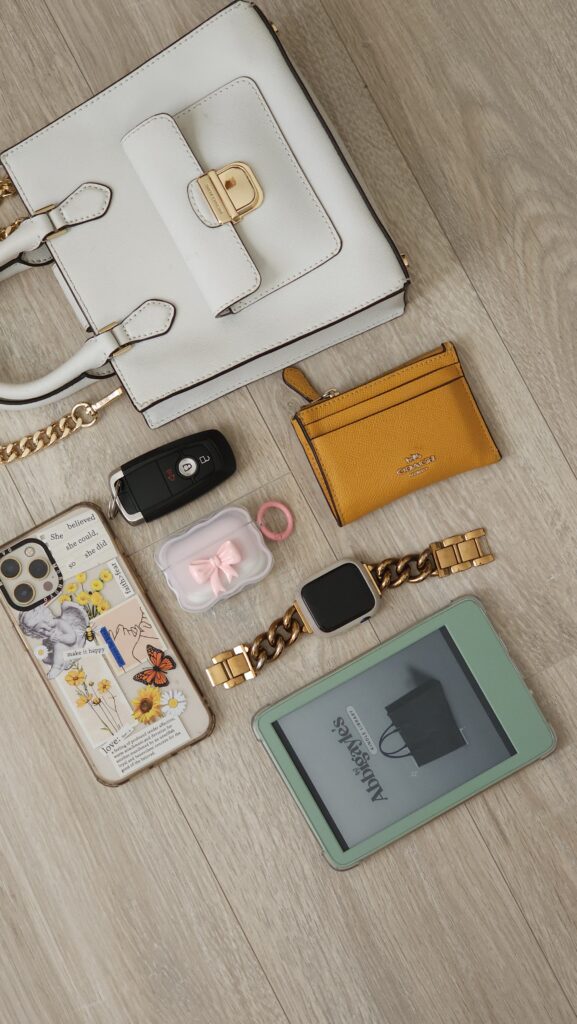
The Kindle Basic is small, compact, and fits easily into pretty much any bag I carry, it truly is my emotional support Kindle at this point. Between the reading experience, the customization options, and the portability, it’s been a genuinely great device for my day-to-day reading.
Check out my favorite bookish finds on my Amazon Storefront.
If you found this helpful, subscribe to Abbi’s Digital Nook for more Kindle tips and e-reader insights. I post every Monday, see you in the next one!
shop the post


